Adding Users
User Management
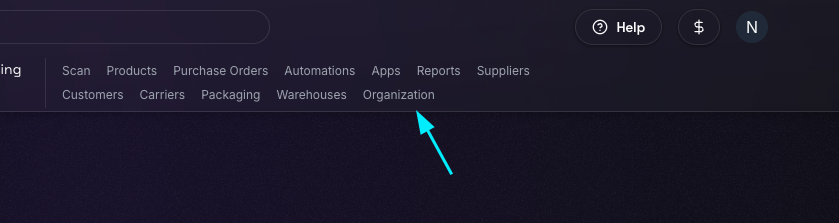
You can manage users in your account such as inviting, adding, editing and removing. To do this, click on the Organization link on the top right navigation menu (shown below).
Adding a New Team Member
To add a new team member, click the “Add Member” button. You have the option of either adding directly, or sending an invite to the email address of the person you want to add.
Note: Adding directly doesn’t send an invite email, this is useful when adding team members that are not logging into the email address you are specifying for their account.
Adding New Team Members in Bulk
You also have the option of uploading a csv file of users, making it easier to add many team members at once. To do this, click on the “Upload Members” button and use the csv template as the format for adding your team members.